By JW Tool Box
Best PDF Compression Settings for Printing vs Email (Free Guide 2026)
Choose DPI, quality, and output formats that stay sharp on paper and small in inboxes.
Why trust this guide
- Written by JW Tool Box around the actual workflow or linked tool on this page.
- Updated when browser behavior, file handling, or platform dimensions change in ways that affect the steps.
- Focused on practical settings, safe defaults, and real tradeoffs instead of generic filler.
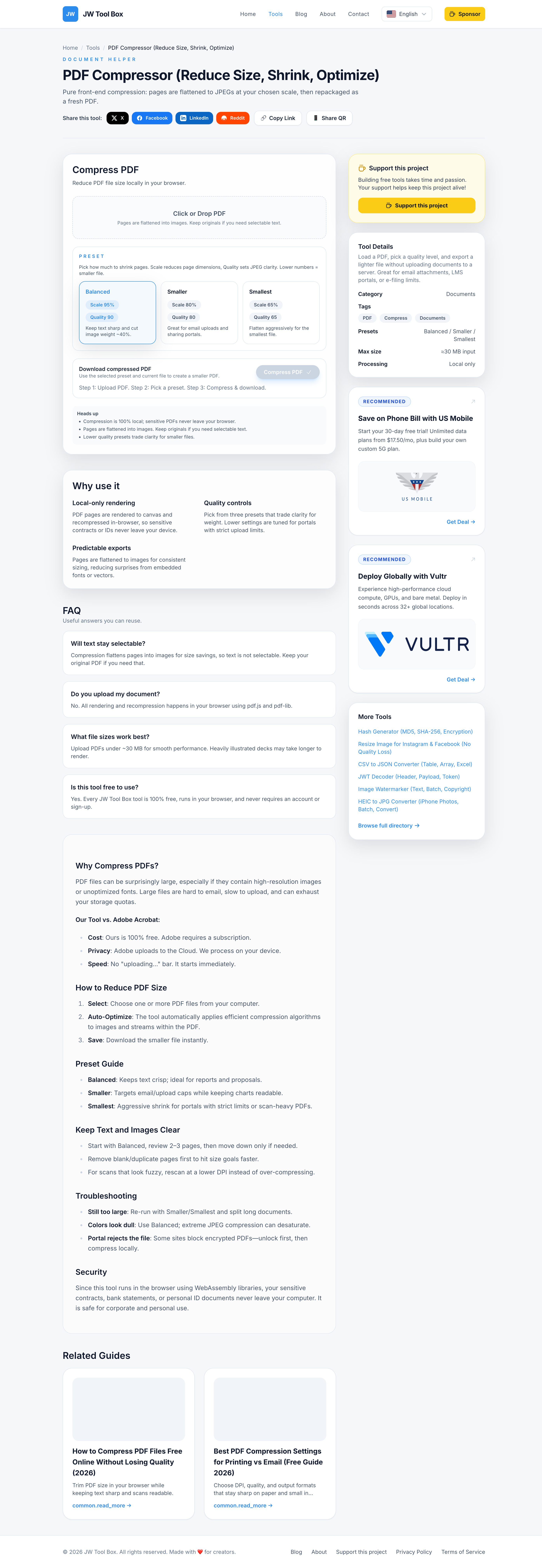
You can tune a PDF differently for printing and for emailing. Use the PDF Compressor and PDF to Image to hit the right size/quality balance without uploading files.
Print-friendly settings
- Resolution: 200–300 DPI for text-heavy docs; 300 DPI for photo-heavy brochures.
- Quality: 0.75–0.85 in the compressor to preserve gradients and small text.
- Format: Keep PDF; avoid flattening to images unless required by a print shop.
Email-friendly settings
- Resolution cap: 150–180 DPI or max width 1400–1600 px.
- Quality: 0.6–0.7 for mixed docs; 0.65 for slide decks.
- Target size: keep attachments under 10 MB; if larger, split or export per section.
Workflow in the compressor
- Open PDF Compressor.
- For print: set Max Width around 2200–2600 px and Quality 0.8. For email: 1500–1800 px and 0.65–0.7.
- Compress and download; check text at 100% zoom before sharing.
When to convert pages to images
If a print shop needs images, use PDF to Image:
- Choose PNG for crisp text/lines, JPG (quality 0.75–0.8) for photos.
- Export only the pages required to keep the ZIP small.
Quick presets
- Contracts/receipts (email): width 1600 px, quality 0.7.
- Slide decks (email): width 1500 px, quality 0.65.
- Flyers for print: width 2400 px, quality 0.8.
Keep an original copy untouched. Export a print version and a light email version so you do not compromise legibility.
Why DPI and Quality Actually Matter
PDF compression is a trade-off between detail and file size. The two main knobs are:
- Resolution (DPI / pixel width): how much detail is stored per inch or in the exported image. Too low, and small text becomes fuzzy on paper. Too high, and a 30-page document becomes a multi-hundred-megabyte attachment.
- Quality: how aggressively the compressor discards visual information. Text and line art tolerate high compression well; photos and gradients lose smoothness first.
The right balance depends on the destination: a print shop needs enough detail for sharp output, while an email recipient mainly needs a file that opens quickly and does not bounce from size limits.
A Step-by-Step Decision Flow
- Who is the recipient? A print shop → aim for 200–300 DPI. An email inbox → aim for 150–180 DPI.
- What is in the document? Text-heavy (contracts, reports) tolerates more compression than photo-heavy (brochures, portfolios).
- Set the size target. Keep email attachments under roughly 10 MB; many mail servers reject larger files.
- Run the compressor. Adjust resolution and quality, then download.
- Verify legibility. Open the compressed file at 100% zoom and check a few lines of small text before sending.
When to Split Instead of Compress
Sometimes compression alone is not enough. If a document stays oversized even at low quality:
- Export only the pages the recipient needs with PDF Splitter or page-range export.
- Remove blank pages and duplicates before compressing.
- For presentations, export slides as images if the source contains heavy embedded media.
A 5-page summary sent on time beats a 50-page original that bounces.
Email-Friendly vs Print-Ready Cheat Sheet
| Destination | Resolution | Quality | Notes |
|---|---|---|---|
| Email: contract | 150 DPI / ~1600 px | 0.7 | Text stays readable; size stays small |
| Email: slide deck | 150 DPI / ~1500 px | 0.65 | Reduce embedded photos first |
| Print: flyer | 2400 px width | 0.8 | Crisp for paper |
| Print: photo brochure | 300 DPI | 0.75–0.8 | Preserve gradients |
Keep the untouched original saved locally, and export a version for each destination so you never have to compromise legibility.
About the author
JW Tool Box - Editorial and product review team
JW Tool Box publishes hands-on guides tied directly to the site's browser-based tools. Content is updated when browser behavior, platform rules, or product requirements change in ways that affect real workflows. The goal is to provide practical instructions, tested defaults, and trustworthy reference content instead of thin keyword filler.