By JW Tool Box
Online Countdown Timer: Focus Blocks, Study Sessions & Cooking (2026)
Last updated
A free online countdown timer with Pomodoro presets, a progress ring, and an alarm. Set 5 to 25 minute focus blocks or custom durations — all in your browser.
Why trust this guide
- Written by JW Tool Box around the actual workflow or linked tool on this page.
- Updated when browser behavior, file handling, or platform dimensions change in ways that affect the steps.
- Focused on practical settings, safe defaults, and real tradeoffs instead of generic filler.
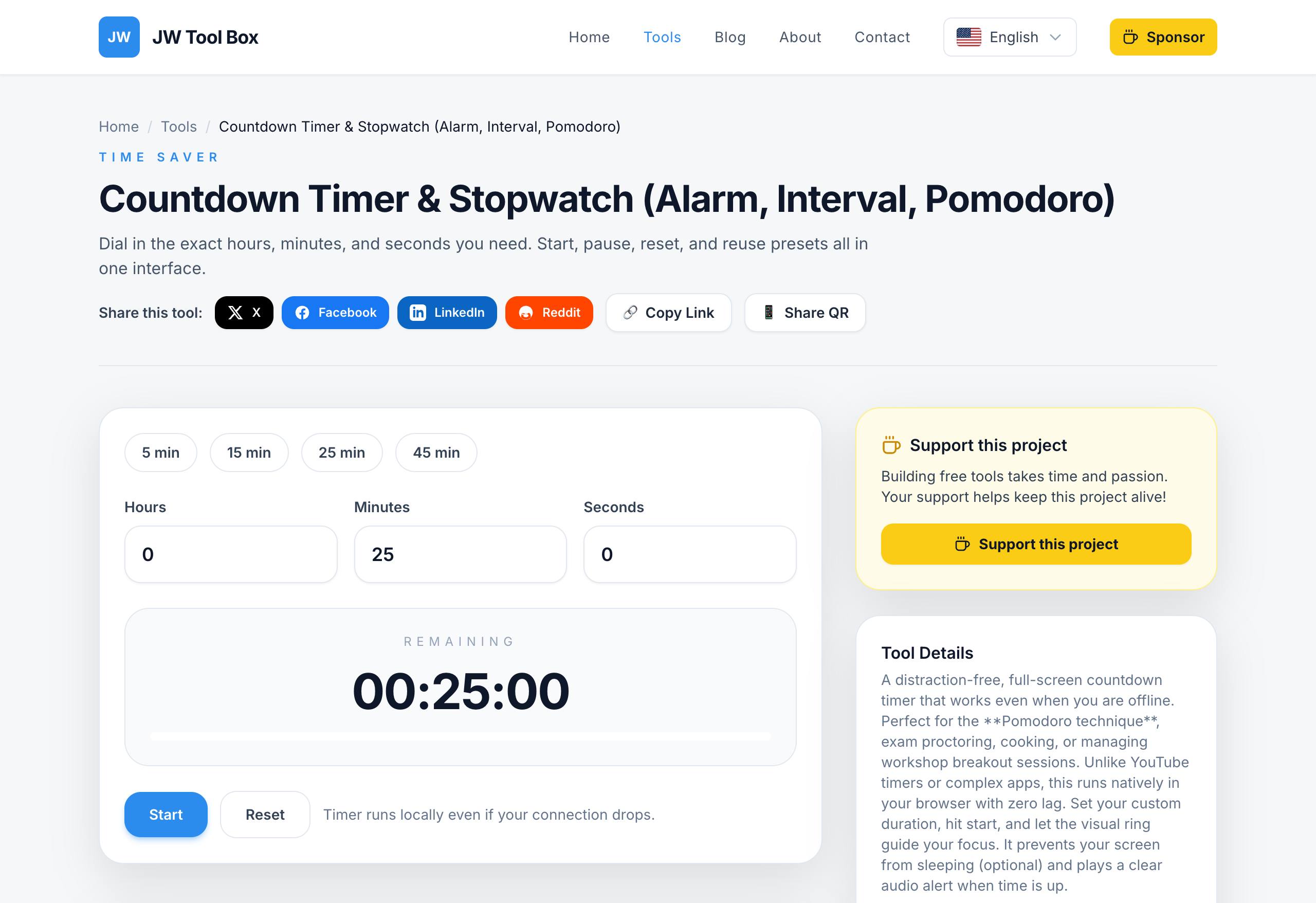
Need a countdown that starts in seconds, without installing an app or creating an account? Use the Online Countdown Timer — it runs right in your browser, shows a large progress ring, and works offline.
Most people open the timer on their phone and discover the screen turns off, the alarm is buried, or they waste time finding the right mode. A browser countdown fixes all of that: open it, choose the minutes, and press Start.
⚡ Quick Answer
Open the Countdown Timer, tap a preset (5, 15, 25, or 45 minutes) or set a custom duration up to 23h 59m 59s, then press Start. The progress ring shows how much time remains at a glance.
Countdown vs. Stopwatch: What's the Difference?
A countdown timer counts down from a fixed duration to zero and alerts you when it finishes. A stopwatch counts up without a limit. For tasks with a deadline — studying, cooking, training, or presenting — you want a countdown.
Common searches like countdown timer online, online timer, and study timer all point to the same thing: a visible countdown with an alarm that runs directly in the browser.
Recommended Presets for Real Work
| Use case | Starting point | Why |
|---|---|---|
| Pomodoro focus block | 25 minutes | Balanced concentration without too much resistance |
| Short break | 5 minutes | Prevents breaks from drifting too long |
| HIIT workout round | 30 seconds to 5 minutes | Easy to reuse between intervals |
| Cooking | 10 to 45 minutes | No dependence on a locked phone |
| Presentation or class | 10 to 20 minutes | Keeps the pace visible for everyone |
| Exam practice | 45 to 60 minutes | Time control without distractions |
How to Use the Countdown Timer
- Open the Countdown Timer.
- Pick a duration — use the 5, 15, 25, or 45 minute presets, or enter exact hours, minutes, and seconds.
- Press Start. The progress ring gives you a quick-glance view of what's left.
- Pause, reset, or repeat the same duration without reconfiguring it.
The countdown runs in your browser and needs no account. The timer event may include the selected duration in site analytics, as explained in the Privacy Policy.
The Pomodoro Workflow
Pomodoro is the most common reason people open a countdown. A complete cycle looks like this:
- Set 25 minutes and start a focus block.
- Work until the timer reaches zero, keeping the tab visible so the ring acts as a visual cue.
- Take a 5-minute break with the short preset.
- Repeat. After four focus blocks, take a longer 15–30 minute break.
If 25 minutes feels too long at first, drop to 15 — the habit matters more than the exact number.
Keep the Screen On During Long Sessions
If you're following a recipe, training, or presenting, having the screen go dark mid-session is a problem. Pair the timer with the Keep Screen On tool, which works in most browsers, so the display stays awake during your countdown.
Troubleshooting Common Timer Issues
- No sound at the end — the browser may be muted or the tab throttled. Test a short 5-second timer with sound on before a real session.
- Timer drifts after switching tabs — some browsers throttle background tabs; the timer re-syncs when you return. Keep the tab open and visible for anything time-critical.
- The screen dims mid-session — pair it with the Keep Screen On tool so the display stays awake during presentations, recipes, or workouts.
- Not sure if it started — the progress ring and remaining time update immediately; check the preset before pressing Start.
Privacy and Why a Browser Timer Helps
This countdown tool doesn't store schedules, doesn't ask for an account, and doesn't send anything to a server. It's a practical utility page: set it, start it, and work. That makes it a good fit for classrooms, offices, and anywhere you'd rather not install yet another app.
FAQ
Does an online countdown timer require installation?
No. It runs directly in your browser on a computer, tablet, or phone. There's nothing to download and no account to create.
Can I use it without an internet connection?
Yes. The entire countdown happens on your device, so the timer keeps working even if you lose the connection.
Does it make a sound when the countdown finishes?
When the remaining time reaches zero, the interface shows a completion message. Make sure your system sound is on and test a short timer first if you're relying on the alert.
Does the timer keep running if I switch tabs?
Yes. The countdown continues as long as the tab is open. If the browser throttles background tabs, the timer syncs itself as soon as you return.
Can I reuse the same duration multiple times?
Yes. After it finishes, press Start again with the same configuration — ideal for workout rounds or repeated study cycles.
About the author
JW Tool Box - Editorial and product review team
JW Tool Box publishes hands-on guides tied directly to the site's browser-based tools. Content is updated when browser behavior, platform rules, or product requirements change in ways that affect real workflows. The goal is to provide practical instructions, tested defaults, and trustworthy reference content instead of thin keyword filler.
Related guides
-
Pomodoro vs. Deep Work: How a Simple Countdown Timer Boosts Productivity
People usually frame productivity as a tool problem. In practice it is more often a structure problem. If a task has no defined working window, it expands until you feel guilty, distracted, or exhausted. That is why both Pomodoro and Deep Work still hold up. They are just two different ways of timeboxing attention. Pomodoro: Short Cycles With Clear Recovery Pomodoro is best when you need help…
-
How to Keep Screen On During Google Meet, Zoom & Teams (2026)
Working from home? Nothing kills your flow faster than your screen going dark in the middle of a Zoom call, a client demo, or while monitoring your work dashboard. Stop fighting with power settings. Use our Keep Screen On tool to prevent sleep mode with one click—no software installation, no admin privileges required. Quick answer: open Keep Screen On in a browser tab and press start before yo…
Related tools
Additional browser-based utilities that are closely related to this workflow.
-
Countdown Timer & Stopwatch (Alarm, Interval, Pomodoro)
Set shareable countdowns for launches, workouts, or study blocks.
-
World Clock (Time Zones, Local, Meeting Planner)
See the current time across major cities and plan meetings easily.
-
Screen Wake Lock (Prevent Sleep, Always On)
Prevent your screen from dimming on Google Meet, Zoom, or while presenting.