By JW Tool Box
How to Combine PDF Files Without Adobe Acrobat
Last updated
Combine PDFs without Acrobat using a browser, Mac Preview, or a Windows desktop app. Check the file order and page count before sending the result.
Why trust this guide
- Written by JW Tool Box around the actual workflow or linked tool on this page.
- Updated when browser behavior, file handling, or platform dimensions change in ways that affect the steps.
- Focused on practical settings, safe defaults, and real tradeoffs instead of generic filler.
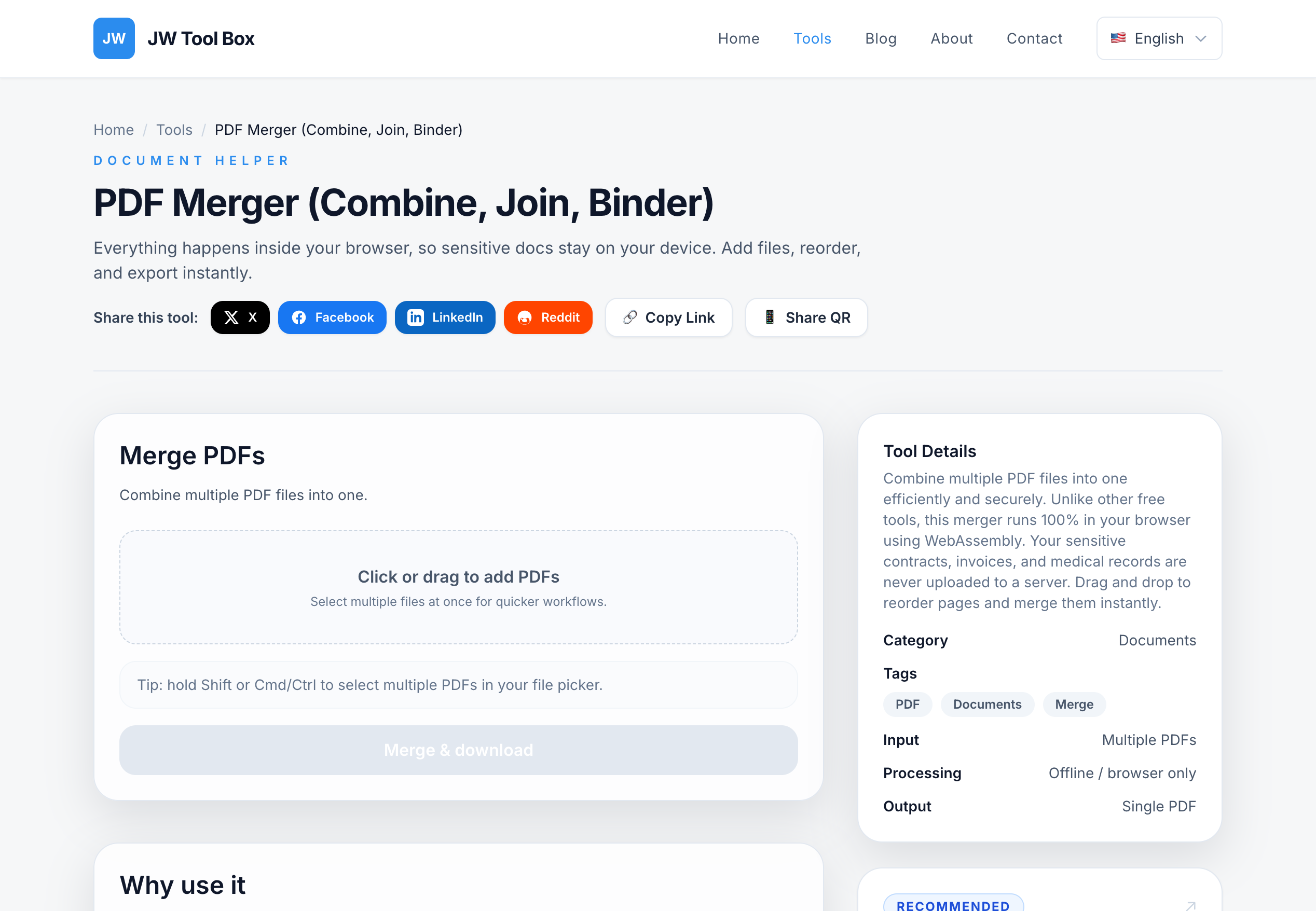
To combine PDF files without Acrobat, open PDF Merge, add the source documents, put them in order, then merge and download. It runs in your browser, with a 15 MB limit per source PDF. On a Mac you can also use Preview. For an installed Windows option that works offline, see PDF24 Creator below.
This page covers the merge operation and troubleshooting. For a worked cover/invoice/receipts packet, use the PDF binder guide.
Choose a free way to combine PDFs
| Where you’re working | Method | What to check |
|---|---|---|
| Windows, Mac, or a Chromebook in a browser | JW Tool Box PDF Merge | Check that every source is at most 15 MB and appears in the list. |
| Mac, using an included app | Preview | Work on a duplicate of the receiving document because Preview saves edits automatically. |
| Windows, using an installed app offline | PDF24 Creator desktop app | Choose the desktop product for local processing and check whether you can install it on your PC. |
Merge files in the order you need
- Add your PDFs and check that every expected filename appears in the selected-file list. Oversized files are skipped.
- Use the up/down controls to arrange whole documents. Moving a four-page PDF moves all four pages together.
- Remove an accidental selection before merging.
- Merge and download the combined PDF. Processing time depends on the files and device; there is no fixed completion-time promise.
- Open the download and check the page count, order, orientation and small text.
Check the result before sending it
Example: combine a form and supporting documents
For a packet with application.pdf (two pages), receipt.pdf (one page) and supporting-notes.pdf (three pages), arrange the file list in that order. The downloaded PDF should have six pages:
| Output pages | Source document |
|---|---|
| 1–2 | application.pdf |
| 3 | receipt.pdf |
| 4–6 | supporting-notes.pdf |
We ran this example with synthetic files through the JW Tool Box merge code. The output contained six pages in the order shown, with the source page dimensions and rotations preserved.
If the receipt needs to appear between the two application pages, merge first, then use the PDF Page Organizer to move the receipt page. Use the page numbers to check where each source starts.
Mixed A4 and Letter inputs retain their own page dimensions. Merging does not standardize paper sizes or edit the text. Check links, forms, annotations and signatures that matter to you; do not assume document-level features survive unchanged merely because the file opens.
Combine PDFs in Preview on Mac
- Open the PDF that should appear first. Choose File → Duplicate and work in that copy.
- Open the other PDF. Choose View → Thumbnails in both windows.
- Select the pages you want in the source sidebar and drag them into the copy’s sidebar at the position you want. For a whole document, drag its PDF file from Finder into that sidebar.
- Reorder thumbnails as needed, save the copy, and reopen it to check the result.
Whole files or individual pages?
| What you need | Next step |
|---|---|
| Combine complete documents | Use PDF Merge |
| Rotate, remove or reorder individual pages | Use PDF Page Organizer |
| Extract only the pages you need | Use PDF Splitter |
| Start with screenshots or photos | Use Images to PDF first |
| Reduce a large result | Review the PDF compression workflow and its readability limits |
Why is a file missing from the list?
The current per-file cap is 15 × 1,024 × 1,024 bytes, displayed as 15 MB in the tool. Files above it are skipped. Check the warning and list rather than assuming every dropped file was accepted. A Word document or photo needs conversion to PDF first.
There is no account requirement. The complete batch must still fit in available browser memory; a per-file limit is not a guarantee that every large batch will succeed on a phone.
What if a PDF is password-protected or damaged?
Try opening the original in a PDF viewer. If you are authorized to open an encrypted file, obtain an unlocked export using the document's password and a trusted application. A broken PDF may need a fresh copy from its source. Renaming the extension does not repair it.
Do not send private files to report a problem. A description of the error, browser and approximate file size is usually a better starting point.
Why is the merged file still large?
Merging assembles pages; it does not promise to shrink them. Remove unneeded pages or export a smaller source PDF first. If you use the rasterizing compressor, inspect its output carefully: searchable text and interactive features may be lost. A byte target alone does not establish readability or suitability for submission.
Does merging upload my documents?
Document contents are processed locally in your browser. Website analytics and advertising are separate activity described in the Privacy Policy. Keep an untouched copy and check the downloaded document before sharing it.
About the author
JW Tool Box - Editorial and product review team
JW Tool Box publishes hands-on guides tied directly to the site's browser-based tools. Content is updated when browser behavior, platform rules, or product requirements change in ways that affect real workflows. The goal is to provide practical instructions, tested defaults, and trustworthy reference content instead of thin keyword filler.
Related guides
-
Free PDF Binder Online in 2026: Merge Documents Without Uploading Them
A PDF binder combines several PDFs into one ordered document. To assemble a cover, invoice and receipts, use PDF Merge, arrange the files with the up/down buttons and download one PDF. Each source file can be up to 15 MB. Individual-page editing uses a separate tool. TL;DR - Use the PDF Merge Tool as a browser-based PDF binder. Add your files, reorder them, export one combined PDF, and keep th…
-
How to Compress a PDF to 2 MB or Less: Tested Settings and Limits
To try to compress a PDF under 2 MB, open the PDF Compressor, choose Balanced, download the result and check its actual file size. If it remains too large, retry a stronger preset from the original file. The tool does not offer an exact “2 MB” target or guarantee that every PDF will fit. Keep the original. This compressor renders each page to a JPEG and rebuilds a PDF. Selectable text, interac…
-
Convert PDF Pages to JPG or PNG: Formats, Limits and Output Checks
Use PDF to Image to render each PDF page as a JPG or PNG and download the images in a ZIP. The current input limit is 40 MB (40 × 1,024 × 1,024 bytes) for one PDF. Processing time depends on page complexity and available memory. Export the pages 1. Keep the original PDF and select it in the tool. Check that the selected file is the intended document. 2. Choose PNG or JPG. The JPEG quality cont…
Related tools
Additional browser-based utilities that are closely related to this workflow.
-
PDF Merger (Combine, Join, Binder)
Combine multiple PDF documents without leaving your browser.
-
PDF Page Organizer (Reorder, Rotate, Delete Pages)
Reorder, rotate, delete, and clean up PDF pages locally.
-
PDF Splitter (Extract Pages, Separate, Cut)
Split PDFs into single pages or export a custom page range.