By JW Tool Box
Remove a PDF Password You Know: Export a Readable Copy Locally
Last updated
Use a known password to create an image-based PDF copy, and check whether losing text and interactive features is acceptable for your document.
Why trust this guide
- Written by JW Tool Box around the actual workflow or linked tool on this page.
- Updated when browser behavior, file handling, or platform dimensions change in ways that affect the steps.
- Focused on practical settings, safe defaults, and real tradeoffs instead of generic filler.
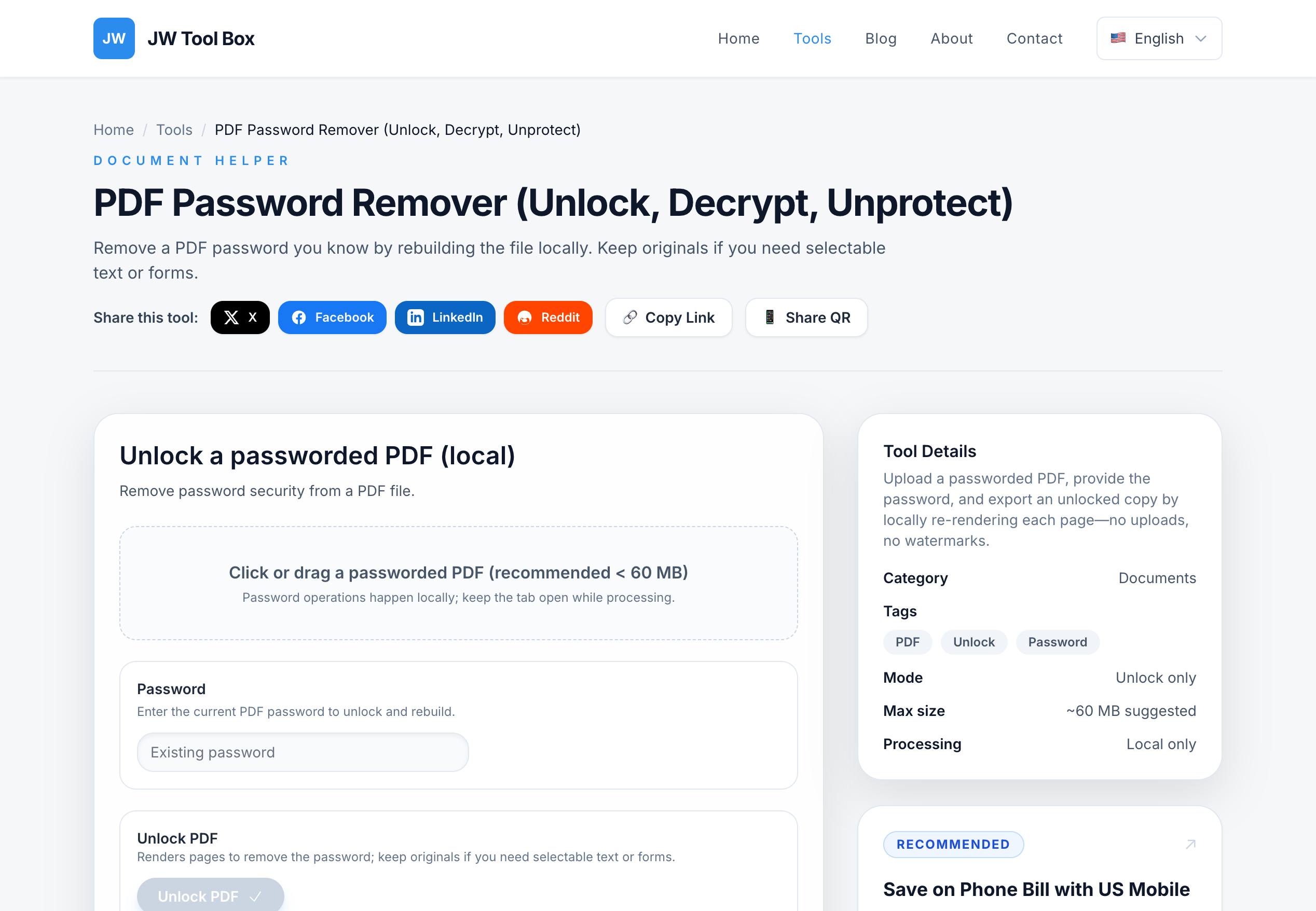
If you know the current password and are authorized to use the document, PDF Unlock can open it and export a copy without an opening password. This tool renders pages as images and rebuilds the PDF. It is not a lossless encryption-removal workflow.
Keep the original. If you need selectable text, working forms, links or digital-signature functionality, obtain a suitable export from the source application instead.
Decide whether this output suits your task
| You need | Is this workflow suitable? |
|---|---|
| A visual copy that opens without the password | It may be; inspect every important page |
| Searchable or editable text | No; the output pages are raster images |
| Interactive form fields or clickable links | No; visual appearance is not interactive functionality |
| A valid digital signature | Do not substitute this rebuilt copy for the signed original |
| Recovery of an unknown password | No; the current password is required |
Export a copy with a known password
- Keep an untouched original and open PDF Unlock.
- Select one PDF up to 60 MiB (60 × 1,024 × 1,024 bytes). The file information may label the limit as MB.
- Enter its current opening password. This is not a password-cracking tool.
- Start the export and wait for processing. Time and memory use depend on page count and dimensions.
- Open the downloaded copy independently. Confirm that it opens without a password and contains all expected pages.
- Compare orientation, small text, numbers, page dimensions and any visible signature marks with the original.
What changes during export?
The current implementation renders each page at 1.5× scale, encodes it as a JPEG at 88% quality, and puts those images into a new PDF. The output page dimensions follow the rendered images rather than preserving the original PDF dimensions exactly. The new file may be larger than the source.
Text that looks readable on screen is not necessarily selectable or searchable. A visible signature image is not the original digital signature. Rebuilding pages also does not preserve original bookmarks, forms or links as working PDF features.
If the password or export fails
- Verify the password by opening the original in a trusted PDF reader. Passwords can be case-sensitive.
- Obtain the current password or an authorized export from the document owner if it is unknown.
- Check the input size and try a smaller suitable document if browser memory is exhausted.
- If a file is damaged, obtain a fresh original; changing its filename does not repair it.
Do not overwrite the original just because export completed. Use PDF Merge only after checking the rebuilt copy and confirming that a visual-only version meets your needs.
Local processing and privacy
The document and password are used locally by the browser tool rather than uploaded to JW Tool Box. Website analytics and advertising are described separately in the Privacy Policy. Do not include a private document or its password when reporting an error; describe the browser, approximate size and visible message instead.
About the author
JW Tool Box - Editorial and product review team
JW Tool Box publishes hands-on guides tied directly to the site's browser-based tools. Content is updated when browser behavior, platform rules, or product requirements change in ways that affect real workflows. The goal is to provide practical instructions, tested defaults, and trustworthy reference content instead of thin keyword filler.
Related guides
-
How to Combine PDF Files: Merge, Reorder and Check Your Download
To combine PDFs, open PDF Merge, add the source documents, arrange their order with the up/down buttons, then merge and download. Each source file must be 15 MB or smaller. Keep the originals until you have inspected the result. This page covers the merge operation and troubleshooting. For a worked cover/invoice/receipts packet, use the PDF binder guide. Merge files in the order you need 1. Ad…
-
Free PDF Binder Online in 2026: Merge Documents Without Uploading Them
A PDF binder combines several PDFs into one ordered document. To assemble a cover, invoice and receipts, use PDF Merge, arrange the files with the up/down buttons and download one PDF. Each source file can be up to 15 MB. Individual-page editing uses a separate tool. TL;DR - Use the PDF Merge Tool as a browser-based PDF binder. Add your files, reorder them, export one combined PDF, and keep th…
-
How to Compress PDFs Locally: Presets, Readability and Tradeoffs
The PDF Compressor renders your PDF pages in the browser and rebuilds them using JPEG images. This can reduce image-heavy documents, but it is a lossy process. Keep your original and compare the exported file before sharing it. For a specific upload limit, use the tested PDF-under-2-MB workflow. This guide explains when compression is appropriate and which tradeoffs to check. What the compress…
Related tools
Additional browser-based utilities that are closely related to this workflow.
-
PDF Merger (Combine, Join, Binder)
Combine multiple PDF documents without leaving your browser.
-
PDF Password Remover (Unlock, Decrypt, Unprotect)
Enter the correct password to rebuild an unlocked PDF copy in your browser.
-
PDF Splitter (Extract Pages, Separate, Cut)
Split PDFs into single pages or export a custom page range.